

There’s no single right hardware refresh cycle. Laptops, servers, switches and firewalls age at different rates, and the real trigger is usually support status, not the calendar. The ranges people quote are a starting point for budgeting. The decision on any given device should rest on whether it’s still supported, still reliable and still able to run what the business needs.
This post sets out the intervals commonly cited for each kind of kit, the signals that tell you something is due, and when it makes sense to stretch a device rather than replace it.
Why a hardware refresh cycle matters more than the purchase date
An estate without a refresh plan tends to age unevenly. A few sites get new kit when something breaks, others run machines long past the point where they’re costing more in support time than they’re worth. The result is a fleet with many models, many firmware levels and many spare-part lines, which is exactly what makes break-fix support slow and expensive.
A planned cycle gives you three things: a predictable budget, fewer model variants to support, and the chance to replace kit before it fails at a bad moment. For an MSP or integrator, it also turns a stream of unplanned tickets into scheduled work you can quote and staff properly.
Typical refresh ranges by kind of kit
The figures below are ranges you’ll often see cited across the industry. Treat them as rough guides, not rules. Your own warranty terms, usage and vendor support dates should take priority.
| Kit | Range often cited | What usually decides it |
|---|---|---|
| Laptops | Around 3 to 5 years | Battery, physical wear, OS support |
| Desktops | Around 4 to 6 years | OS hardware requirements, performance |
| Servers | Around 4 to 7 years | Warranty, firmware support, workload growth |
| Switches and routers | Often 5 years or more | Vendor end-of-support dates, port speeds |
| Firewalls | Tied to vendor support | Security updates, subscriptions, throughput |
| Wireless access points | Around 4 to 6 years | Wi-Fi standard, client devices, density |
| POS terminals | Varies widely | Payment software and peripheral support |
Network kit is the category most often run past its useful life, because it tends to keep working long after support ends. That’s fine until a security flaw needs a patch that the vendor no longer ships.
Signals that kit is due for replacement
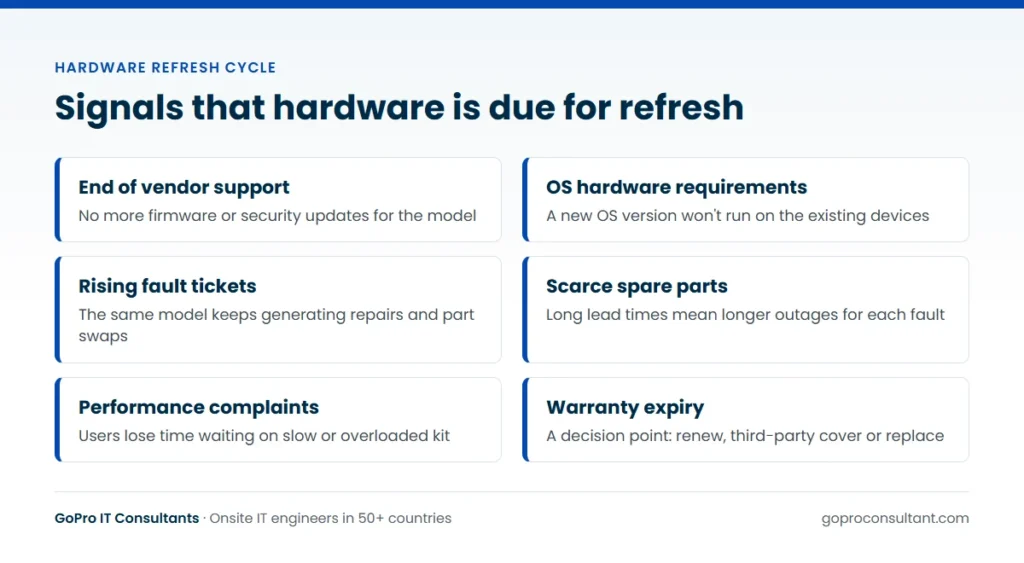
Age is the weakest signal. These tell you more:
- End of vendor support. Once the vendor stops shipping firmware or security updates, the device becomes a risk you’re carrying, whatever its condition.
- Operating system requirements. A new OS version with stricter hardware requirements can force a refresh across a whole fleet of otherwise working PCs, as many organisations found with Windows 11.
- Rising fault tickets. When the same model keeps generating tickets for batteries, drives, hinges or fans, the support cost starts to outweigh the replacement cost.
- Parts getting hard to find. Long lead times for spares on an older model mean longer outages for every fault.
- Performance complaints. Users waiting on slow machines is a cost too, even if it never shows up on an invoice.
- Warranty expiry. Not a reason to replace on its own, but a good moment to decide between renewal, third-party cover or replacement.
A device showing two or three of these at once is usually due, whatever the purchase date says.
The best source for most of these signals is your own ticket history. Group break-fix tickets by model and site for the last year or two, and look for the models that keep coming back. Field visit reports help here too: if every report includes serial numbers and the part swapped, you can see which batches of devices are failing and which are holding up. That turns the refresh conversation with a client from opinion into evidence, which makes the budget much easier to agree.
Endpoints, servers and network kit age differently
Laptops and desktops
End-user devices wear out physically. Batteries lose capacity, keyboards and hinges fail, and laptops get dropped. They also feel slow to users sooner than servers do. Most estates refresh them in rolling batches by user group or site, which spreads the cost and the workload. Our end-user computing services page covers how the deskside side of that usually runs.
Servers and storage
Servers usually go when the warranty or firmware support ends, or when the workload outgrows them. Virtualisation and cloud moves often change the plan entirely: a refresh can become a consolidation, with fewer, larger hosts replacing several small ones.
Switches, routers, firewalls and Wi-Fi
Network kit is driven by vendor lifecycle dates. Check the end-of-sale, end-of-software-maintenance and end-of-support dates for each model in your estate. Firewalls are the strictest case, because they’re useless without current security updates. Wireless is driven by the client devices: when most users carry phones and laptops on a newer Wi-Fi standard, old access points start holding the network back.
How to set a refresh interval for each kit type
A defensible interval comes from your own estate, not from a figure on a vendor slide. This method works whether you’re setting intervals for one client or across a whole book of managed clients.
- List the kit types you actually support. Split them the way support behaves, not the way finance buys them. Rugged warehouse handhelds and office laptops may both count as mobile devices, but they wear out at very different rates.
- Pull the vendor lifecycle dates for every model. End of sale, end of software maintenance and end of support. If a model has no published date yet, note when you’ll check again.
- Match the interval to the warranty term where you can. Kit bought with a warranty that runs to its planned replacement date rarely needs out-of-warranty repairs. That’s a purchasing decision, so make it before the order goes in.
- Check the ticket history by model. If a model’s faults climb sharply in a particular year of service, set the interval for similar kit just before that point.
- Adjust for usage. A laptop that travels every day, or a scanner used in a cold store, ages faster than the same model on a desk. Give heavy-use groups their own shorter interval rather than averaging them in.
- Write each interval down with its reason. “Four years, because the warranty is four years and OS support runs past it” is something a client can agree to. “Four years, because that’s normal” isn’t.
- Review it every year. Support dates move, new OS releases change hardware requirements, and a model that looked fine can start failing in batches.
The output is a short table per client: kit type, interval, reason and next review date. It’s not exciting, but it’s what lets you forecast budget and field work a year or two ahead instead of reacting to each failure.
A worked example: intervals for a retail and office estate
Say you look after a retailer with a head office, a distribution centre and a few dozen shops. The estate has office laptops, back-office desktops in the shops, POS terminals, handheld scanners, a small server room, and a mix of switches and access points across the sites.
Start with the network kit, because its dates are set by the vendor and won’t move in your favour. Say the shop switches reach end of support in eighteen months, while the head office core switches have several years left. That makes the shop switches the first priority, however well they’re running today.
Next, the endpoints. The office laptops were bought with a warranty that matches a four-year cycle, and the ticket history shows battery and hinge faults rising in the fourth year, so four years holds. The back-office desktops are lightly used and still meet the current OS requirements, so they can run longer while they keep receiving updates. The handheld scanners in the distribution centre are the outlier. They get dropped, used in the cold and charged several times a shift, so they generate far more tickets than the same model in the shops. They get their own, shorter interval.
The POS terminals follow the payment software. If the POS vendor announces that a future release won’t run on the current hardware, that date drives the refresh, and it may come well before the terminals look worn. Our EPOS installation and support page covers the onsite side of till swaps.
The result isn’t one cycle. It’s five or six, each with a reason attached, and a clear view of what falls due in which year. That’s the document you take into the client’s budget meeting.
When to stretch the cycle instead
Replacing everything on schedule isn’t always the right call. Some kit is stable, still supported and lightly used. Extending its life can make sense if:
- The vendor still ships security updates for it
- Spare parts are available, from the OEM or a third-party maintenance provider
- Fault tickets on that model are low and steady
- Replacing it now would clash with a bigger change, such as a site move
Third-party maintenance is the usual way to stretch servers and storage past the OEM’s support window. Our post on choosing third party IT maintenance providers covers what to look for. The risk is drift: stretching becomes the default and you end up with the uneven estate you were trying to avoid.
Replace, extend or move to third-party cover
When a device reaches the end of its planned interval, there are four realistic options. The right one depends on support status, condition and what else is happening at the site.
| Option | When it fits | Trade-off |
|---|---|---|
| Replace | Out of vendor support, rising faults, or no longer meets OS requirements | Highest upfront cost, but resets the clock and cuts model variants |
| Extend with the OEM | Still supported, stable, and a warranty extension is offered | Keeps one point of contact, but extensions on older kit can be poor value |
| Third-party maintenance | Servers, storage or network kit past OEM warranty but still sound | Stretches useful life, but security updates still depend on the vendor |
| Run to fail | Low-value, non-critical kit with spares on the shelf | Cheapest on paper, but every failure becomes an unplanned ticket |
Run to fail is worth naming, because it’s what happens by default when nobody decides. It’s acceptable for a spare monitor. It’s a poor choice for a firewall or a shop’s only till, where each failure means an urgent break-fix visit and lost trading time while the engineer travels.
Common mistakes when setting refresh intervals
Using one interval for everything
A single number across the estate is easy to budget and wrong for most of it. You’ll replace some kit too early and run network kit far too long.
Ignoring the software side
Hardware often goes out of date because of software, not wear. Operating systems, POS applications and management agents all set minimum hardware requirements. Track their roadmaps alongside the vendor hardware dates, or a software upgrade will set your refresh date for you.
Working from a stale asset register
If the register is missing serials or still lists devices that left years ago, every interval you calculate is built on guesswork. Cleaning the register is usually the first job, not a side task for later.
Forgetting peripherals
Docks, monitors, receipt printers and card readers have their own lifecycles, and new laptops or terminals may not work with the old ones. Give them an interval too, so they don’t turn into a surprise on install day. Our post on hardware break fix covers how peripheral faults are usually handled between refreshes.
Letting extensions become permanent
Extending one model for a good reason is fine. Extending everything because last year’s budget was tight is how estates drift back into a mess. Put an end date and a review date on every extension.
A short glossary of lifecycle terms
- End of sale: the vendor stops selling the model. Support usually carries on for some time after.
- End of software maintenance: no more feature or bug-fix releases, though security fixes may continue for a period.
- End of support (often called end of life): no updates of any kind and no vendor technical support. For refresh planning, this is the date that matters most.
- Total cost of ownership: the purchase price plus support, repairs, downtime and disposal across the device’s whole life.
- Asset register or CMDB: the record of what you own, where it is, who uses it and its key dates.
- Third-party maintenance (TPM): hardware support from a provider other than the original manufacturer, often used once OEM warranty ends.
Turning the cycle into a technology refresh plan
Once you know what’s due and when, group it. A technology refresh works best as planned waves rather than one-off swaps, so the field work can be scheduled, staffed and tracked like any other project. That’s where the cycle turns into a strategy: deciding which sites go first, how the budget is phased and how old kit is collected. We cover that in our post on hardware refresh strategy for multi-site estates.
Two practical points to build in from the start. First, keep an accurate asset register with model, serial, location and support dates, because every refresh decision depends on it. Second, plan for the old kit. Retired devices still hold data, so the cycle isn’t finished until they’ve gone through a proper IT asset disposition route with records by serial number. For the onsite swaps themselves, our multi-site rollout service runs a pilot site first, then waves, with a daily tracker of photos and serials. Set your hardware refresh cycle by kit type, review it each year against support dates, and let the evidence, not the calendar, make the final call.
Frequently asked questions
Should every device type follow the same refresh interval?
No. Laptops, servers and network kit age at different rates, so most estates set a separate interval for each type and review it against vendor support dates.
Is warranty expiry a reason to replace hardware?
Not on its own. It's a good point to decide between renewing the warranty, moving to third-party maintenance or replacing the device.
What should an asset register hold for refresh planning?
At minimum the model, serial number, location, purchase date, warranty end and vendor support dates for each device.
Can refreshed devices be swapped during business hours?
Often yes for endpoints, but servers and network kit are usually swapped in a scheduled window, including nights or weekends.
Planning the onsite side of a refresh?
We run multi-site rollouts with a pilot site, then waves, and a daily tracker with photos and serial numbers.
Discuss your refresh